How to Install or Upgrade to a New BlackBerry Operating System (OS)
you will love this…..
Research In Motion (RIM) is constantly developing and testing new software and applications for your BlackBerry. Keeping up to date with the newest operating system (OS) software for your smartphone ensures that you have access to all the latest and greatest features and performance tweaks. With the official release of BlackBerry OS v4.5 on the horizon—various beta, or test, versions of the software are already bouncing around the Web—we thought this would be a great time for a BlackBerry OS tutorial. What follows is our step-by-step guide on how to upgrade your BlackBerry’s OS, or install a different version, as well as how to prepare beforehand to make the process run as smoothly as possible. To start a new operating system install, you’ll need your BlackBerry, an Internet-connected PC, a USB cable and about an hour and half of free time—50 minutes or an hour for the upgrade process and 30 minutes or catch-up time afterwards. Mac users beware: RIM doesn’t currently offer the BlackBerry Desktop Manager software for Apple computers; however, industrious Mac owners running Parallels and who have a copy of Windows have been able to upgrade their BlackBerrys via Macs, though the process can be a bit clumsy. If you’ve got all the necessary tools listed above, the BlackBerry OS install process should be a breeze. Let’s get started.
How to Install or Upgrade to a New BlackBerry Operating System
1) Download New BlackBerry OS Software
First things first, you’ll want to download the new BlackBerry OS and save it to your PC. To determine what OS version you’re currently running, click the Options icon on your BlackBerry home screen and select About. Your OS version will be listed as a series of numbers after a lowercase V (v4.2.2.184) on the first screen. You can also employ the Help Me screen shortcut to determine your current OS version by hitting ALT, SHIFT and the letter H.
To obtain the latest operating system for your BlackBerry device, first check your wireless carrier’s website. This is the best way to get official RIM OS software. Your carrier may ask you to login to download the software, so you might need to create an online account if you haven’t already done so. Once logged in, locate the system upgrades section, check to see if there’s an OS version that’s more recent than the one you’re currently running, and if so, download and save it to your PC’s desktop.
 Save the latest BBOS onto your Windows-powered computer
2) Download and Install the Latest BlackBerry Desktop Manager Software
Next you should ensure that your PC is running the latest version of the BlackBerry Desktop Manager, which is v4.5. To check which version of Desktop Manager you currently have, you should launch the program via Windows Start menu > All Programs > BlackBerry > Desktop Manager. Then click the Help tab on the main screen and choose About BlackBerry Desktop Manager. The software version will be listed on the General tab.
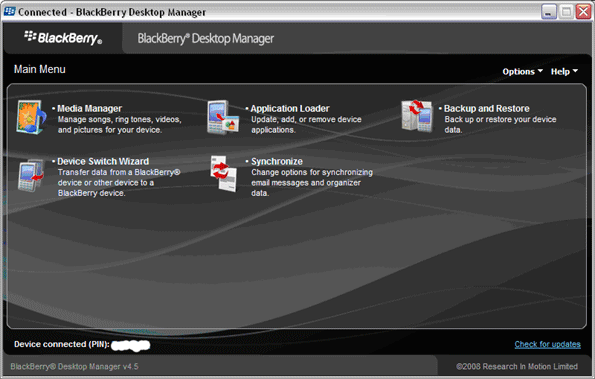 BlackBerry Desktop Manager version 4.5
If you’re not running Desktop Manager v4.5, visit RIM’s site and download and install the latest version of the software.
3) Prepare for New OS By Noting Apps, Services or Setting That Could be Affected
Installing a New BlackBerry OS will return
some of your custom settings to the default options and may require you
to log back into and unlock certain applications. For instance, your
font family, font style and size will revert to default settings after
the OS install, so you may want to go into Options > Screen/Keyboard
settings to make note of your custom settings. Many third-party apps
will also require you to reenter your user name and password, so you may
want to make note of which apps require a login and make sure you’ve
access to the necessary information. For example, your Viigo RSS reader
will prompt you for login information the first time you try to use it,
as will Facebook for BlackBerry, your Twitter client and the Flickr app.
It’s a good idea to switch back to an official RIM theme if you’re
using a third-party option, at least at first, because some features of
non-official themes won’t work properly on the new OS. And it’s worth
noting that applications are meant to run on specific OS version so they
may not work at all after you upgrade.
4) Open New BlackBerry OS and Begin Installation
After you’ve prepared for the changes that
come along with a new BlackBerry OS, you’ll want to begin the
installation process. First, close all related applications and services
on your PC and launch the .exe file. Choose Run and select the
appropriate setup language. The InstallShield Wizard for BlackBerry will
then appear. You should click Next and then on the following screen
choose the country in which you’re currently located. Accept the terms
of service and hit “Next” again. When the install process is complete,
the program will ask you if you want to start the BlackBerry Desktop
software. Fill in the check box next to this option and then hit
“Finish.”

Install OS4.5 onto your computer
When the Desktop Manager software opens,
plug your device into the PC via USB cord. (If for some reason, the
desktop manager software does not launch after a few minutes, go to your
Windows Start menu > All Programs > BlackBerry > Desktop
Manager.) You’ll then see a dialogue box that tells you it’s searching
for device application updates and a few seconds later another box will
appear asking if you want to install the available upgrades. Click
Update Now and a summary page will appear detailing the specific
applications that will be affected. From there, hit the Options tab
beneath the Data Preservation and Device Backup heading and ensure that
the Backup Device Data Automatically During the Installation Process box
is checked. Then hit OK. You can also click on the Advanced tab on the
right side of the Desktop Manager screen to add or update applications
that weren’t included in the default list. For instance, if you deleted
your BlackBerry Messenger app in the past but now want it back, you can
hit Advanced and fill in the check box next to BlackBerry Messenger and
the program will be installed along with your new OS.
 Application Loader Updates Page
Finally, you should click Next again, and
you’ll see an Application Loader summary page that explains how your
device will need to be wirelessly activated and registered with your
carrier after the new OS is installed—don’t fret, this should happen
automatically—and provides a brief summary of the installation process.
Hit Finish, grab a frosty beverage and/or good book and sit back and
relax while you’re new OS is installed. As mentioned above, this may
take awhile so don’t worry if the progress bar seems to be sticking on
the “Connecting to the Device” stage—one of the final steps in the
upgrade process.
 Summary Page. Click Finish and let the Update begin!
If
you’re installing an operating system that’s older than your current
software, you’ll want to download the OS to your PC and launch the .exe
file just as described above. But when you plug your device into your PC
after opening the Desktop Manager, the app won’t find any updates and
you’ll have to instigate the install process yourself. To do so, click
the Application Loader icon on the Desktop Manager home screen and then
click the Start box on the right side of the screen, beneath Update
Applications. The software will then search for updates and won’t be
able to find any. On the following screen, click the Advanced tab under
Device Application Selection, make sure the list of applications on the
next screen includes all programs you wish to include in the install and
hit Next again. Choose to backup your application data on the following
screen and hit Finish to begin the install. You’ll know your new OS is
installed successfully when the Desktop Manager’s Update Complete screen
appears and your device’s radio turns back on. Shortly after the
process finishes up, you should receive a message in you inbox to let
you know your device is registered with your carrier’s network. If you
don’t receive such a message, resend your device’s e-mail service books.
You can send service books in two ways, using either your BlackBerry
itself or your carrier’s BlackBerry Internet Service (BIS) page. To send
service books via BlackBerry, open your E-Mail Settings/Set-Up Internet
E-mail icon, log in if prompted, and click Service Books option under
the Settings heading. On the following page, send the books by hitting
Service Books again. Close out the Desktop Manager, disconnect your
BlackBerry and you’re good.

Done – OS Successfully Updated!!!
Notes
-If you use any BlackBerry Internet Service
(BIS) accounts, you likely want to resend your e-mail service books even
if you’re device was automatically reregistered. This ensures that
you’re taking advantage of any related tweaks that may have been
included in the software update.
- Immediately following your upgrade, you’ll
be prompted to log back into a number of applications but some you’ll
need to manually open to enter your account information. If you have a
media card installed, you’ll also be asked whether or not you want to
turn your BlackBerry’s mass storage mode on, regardless of your previous
settings. You’ll also be asked if you want to run through the
BlackBerry Setup Wizard.
- If you’re on a BlackBerry Enterprise
Server (BES) you should check in with an IT representative before
attempting to upgrade your smartphone’s handheld software, because some
IT policies can block or partially block a new OS install.
No comments:
Post a Comment