Showing posts with label Money. Show all posts

Saturday, April 23, 2016

10 secret but very simple keyboard tips and tricks designed to save you time


Time is money they say, and no one wants to waste money. Unfortunately you sometimes find that you are wasting money simply by wasting time, even while working on your computer. 

Below are the top 10 keyboard shortcuts we recommend everyone memorize and use.

Ctrl + C or Ctrl + Insert and Ctrl + X 

Both Ctrl + C and Ctrl + Insert will copy the highlighted text or selected item. If you want to cut instead of copy press Ctrl + X.

Ctrl + V or Shift + Insert

Both the Ctrl + V and Shift + Insert will paste the text or object that's in the clipboard.

Ctrl + Z and Ctrl + Y

Pressing Ctrl + Z will Undo any change. For example, if you cut text, pressing this will undo it. These shortcuts can also be pressed multiple times to undo or redo multiple changes. Pressing Ctrl + Y would redo the undo.

Ctrl + F

Pressing Ctrl + F opens the Find in any program. Ctrl + F includes your Internet browser to find text on the current page. Press Ctrl + F now to open the Find in your browser and search for "shortcut" to find each time shortcut is mentioned on this page.

Alt + Tab or Ctrl + Tab

Pressing Alt + Tab switches between open programs moving forward. For example, if you have your browser window open and other programs running in the background press and hold Alt and then press tab to cycle through each open program.
Tip: Press Ctrl + Tab to switch between tabs in a program. For example, if you have multiple tabs open in your browser now press Ctrl + Tab to switch between open tabs.
Tip: Adding the Shift key to Alt + Tab or Ctrl + Tab moves backward. For example, if you are pressing Alt + Tab and pass the program you want to use, press Alt + Shift + Tab to move back to that program.
Tip: Windows Vista and 7 users can also press the Windows Key + Tab to switch through open programs in a full screenshot of the window.

Ctrl + Back space and Ctrl + Left or Right arrow

Pressing Ctrl + Backspace will delete a full word at a time instead of a single character.
Holding down the Ctrl key while pressing the left or right arrow will move the cursor one word at a time instead of one character at a time. If you want to highlight one word at a time, hold down Ctrl + Shift and then press the left or right arrow key to move one word at a time in that direction while highlighting each word.

Ctrl + S

While working on a document or other file in almost every program, pressing Ctrl + S saves that file. Use this shortcut key frequently if you're working on anything important in case an error happens, you lose power, or other problem that causes you to lose any work since the last save.

Ctrl + Home or Ctrl + End

Ctrl + Home will move the cursor to the beginning of the document, and Ctrl + End will move the cursor to the end of a document. These shortcuts work with most documents, as well as web pages.

Ctrl + P

Open a print preview of the current page or document being viewed. For example, press Ctrl + P now to view a print preview of this page.

Page Up, Spacebar, and Page Down

Pressing either the page up or page down key will move that page one page at a time in that direction. When browsing the Internet, pressing the spacebar also moves the page down one page at a time.
Tip: If you are using the spacebar to go down one page at a time, press the Shift key and spacebar to go up one page at a time.

Sunday, September 9, 2012

How to change Windows 7 Starter wallpaper

 It is common knowledge that windows 7 starter users do not have many customization options to choose from with regards to changing desktop background .So I have written this post , I hope you windows 7 starter users like it !


Few people would argue that Windows 7 is a great step forward for the platform -- but those folks probably don't use the Starter edition. Anyone who is stuck with it will know that this entry-level variant of Microsoft's operating system is swathed in red tape, and is a real bummer to use beyond browsing the Web or checking your email.
Aimed at netbooks and other proprietary systems, it's the most diluted version of Windows 7 with many basic features missing. Among them are the Aero Glass interface, fast user switching, DVD playback, multi-display support, as well as personalization options, such as the ability to change desktop backgrounds, window colors, or sound schemes.


Most of the excluded features won't really hinder the use of a netbook. After all, few ship with DVD drives or have multiple users anyway, but staring at a bright blue Windows logo for the lifespan of your system is torture. Hell, even Windows 3.1 lets you set a desktop background, and thanks to a number of free utilities, so will Windows 7 Starter.
There are many workarounds online, but we recommend the one provided by Oceanis, which you can download here. Extract and run the program, and reboot upon completion. You should see a new image and message on your desktop, giving credence to Oceanis.


Run the utility and click Browse to select a directory of images. Not only will you be able to define one wallpaper, but you can also select several of them for a slideshow, which can be configured to rotate in various intervals, ranging from a minute to a day.
It's worth noting that a new process called "WallPaperAgent.exe" will run at all times, but it only consumes about 900K of system memory (visiting Pc Genie Land via IE consumes over 30,000k for comparison).


If it's an issue, you can end the process and the custom wallpaper seems to remain intact for that session, but the process is launched again after a reboot and if you cripple the executable (C:\Program Files\Oceanis\SystemSetting\WallPaperAgent.exe) the program won't function properly.
Likewise, uninstalling Oceanis' background changer utility will revert your desktop background to the default Windows 7 wallpaper. It's truly a minor "annoyance" all things considered, and most people would happily sacrifice a smidgen of RAM in exchange for a custom wallpaper.

Saturday, September 8, 2012

How to activate Windows 7 without Keygen or Product Key


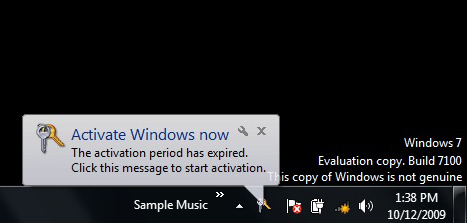
This post is for  people who have the following activation problem, 


To solve this problem , we do not require keygen or product key . We only require RemoveWAT
This tool removes the activation error forever , so no need to search for keys again. 

To activate windows simply click on " Remove Wat " . Then restart your computer . 
That is it !!! You have now successfully activated your windows 7 . 
                                                 [ Download Here ]
                                                  
 
ABOUT THE PROGRAM :-
RemoveWAT can crack windows 7 sp1, windows 7 ultimate, enterprise, professional, home, Basic, etc. It’s 100% working  and tested. RemoveWAT(Windows Activation Technologies 2011) completely from the OS, whilst still retaining OS genuine status and receiving all updates.  So that users can validate the illegal pirated copies of Windows 7 as genuine status forever and permanently. Also allows you to download windows update.
Let me know of your experience with this tool .Hit the " Like" button if this helped you !

Subscribe via email

Enter your email address:

Delivered by FeedBurner